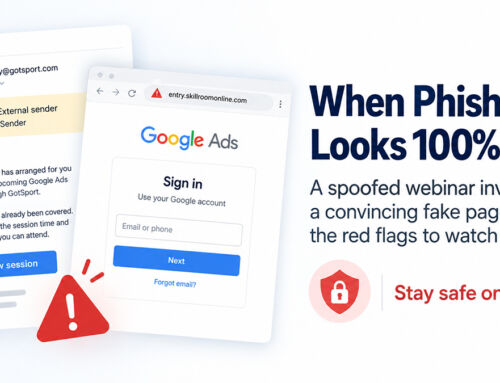

One of our team received an email that looked, at first glance, quite believable.
The message said:
“Your employer has arranged for you to attend an upcoming Ads on Air webinar…”
That is clever.
It immediately creates a sense of familiarity. Your employer has arranged it. It relates to Google Ads. It sounds like training. There is no obvious demand for money and no wildly suspicious story.
You could quite easily think, “Okay, work has organised this. I’ll sign in.”
And that is exactly why we are sharing it.
A message can mention your employer and still be fake
We tend to be more cautious when an unexpected email comes from a bank, courier company or stranger.
But what happens when it says your employer has organised something for you?
Your guard can drop.
Perhaps you assume somebody else in the business arranged the webinar. Maybe marketing registered the team. Perhaps your manager forgot to mention it.
That small amount of doubt can be enough to make you click.
Netsafe warns that phishing emails are becoming increasingly difficult to identify and can use spoofed sender details, familiar branding and information that makes the message seem credible.
CERT NZ also points out that attackers can make an email appear to come from a person or organisation you know and trust. In some cases, even the displayed sender address can look correct.
The biggest clue was sitting in the address bar
The destination was not on google.com.
It was on skillroomonline.com.
That alone deserved further checking.
If a website is asking you to sign in to a Google service, but the domain you are visiting belongs to an unrelated organisation, stop.
Google itself advises users not to enter their Google password after following a link in an email. Instead, go directly to the Google service or your Google Account yourself.
That is a simple habit that can save you a considerable amount of trouble.
Then we looked more closely
Several things did not add up.
- The destination domain did not match Google.
- Many of the page’s secondary links and navigation elements did not behave like a normal Google website. Some simply returned to the same page or added a # to the URL.
- The Google branding looked convincing, but branding can be copied.
- The message was unexpected.
- The wording encouraged the recipient to trust the request because it supposedly came via their employer.
- Independent domain checking raised further concerns. A security scanner report dated 14 September 2026 classified skillroomonline.com as suspicious, recorded a blacklist detection and noted that there was very little established reputation history for the domain.
We also used AI as one of several checks on the destination.
That can be useful, but there is an important distinction here.
Do not rely on an AI answer alone to decide whether a link is safe. Check the actual domain, use reputable security tools, contact the organisation independently and, where possible, go directly to the official website instead.

Stay safe online by checking the destination, not just the design
Before signing in through a link you have received, look at the actual domain.
If you receive a Google notification, open Google yourself.
If Microsoft supposedly needs something, go directly to Microsoft.
If your bank contacts you, open your banking app or type the bank’s known website address yourself.
And if an email says your employer has arranged something that you were not expecting, ask them.
A ten second internal message could prevent an account compromise.
Consumer Protection New Zealand gives similar advice. Do not click a link until you have verified it. Research the organisation independently and use contact details from its official website rather than contact information supplied in the suspicious message.
Awareness is still one of our best defences
We are sharing this because one person spotting a scam can help ten other people recognise the next one.
This email was convincing.
The website was convincing.
The reference to the employer made it even more believable.
But the domain told a different story.
Stay safe online.
Be cautious with unexpected requests, even when the message mentions your employer, manager, colleague or a company you trust.
And perhaps the most useful rule is this:
If a message wants you to sign in, do not let the email choose where you sign in.
Go there yourself.